This checklist is for when you are about to create an Entra External tenant. It is based on my passed experience and is by no means complete. It just gives you a checklist of things to consider. The decision matrix for when to choose an External tenant is out of scope for this post.
Creating the tenant
You create an Entra External tenant from within the Entra admin center (https://entra.microsoft.com). Go to Overview >Manage tenants > click +Create and select External.
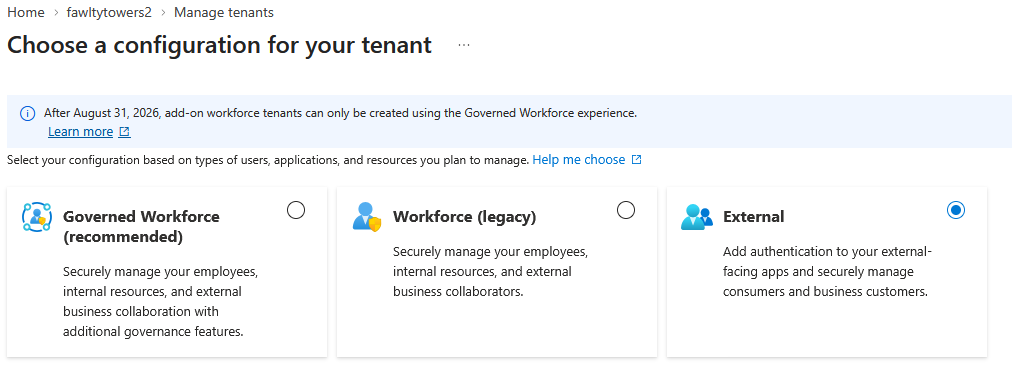
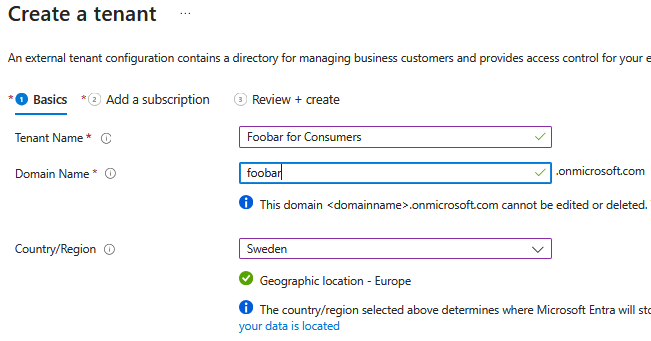
Here you need to be aware of the following which are things you can’t change after creation:
- Domain name. You must select a domain name, like foobar.onmicrosoft.com. Think through your naming as you can’t change it later. Dev/test can probably be named anything, but a prod tenant name probably requires a good name. You can front foobar.onmicrosoft.com with your own domain name later.
- Region. You select the region where your Entra directory data is stored. Think through your regulatory requirements, like “within EU”, etc. You can’t change region after creation.
- Azure subscription. You need to pick an Azure subscription and resource group for billing purposes. The subscriptions/resource groups available are those the current user in the Entra portal have access to. Consider creating a new resource group for cost tracking purposes.
- Initial admin. The user creating the external tenant will become the initial admin. No other user will have access to the external tenant in the beginning. The initial admin is created like this:
a. UPN alice_contoso.com#EXT#@foobar.onmicrosoft.com
b. userType Member
c. Global Administrator role assigned.
d. Federated authentication back to the Entra Workforce tenant.
The initial admin can be removed later if needed.
Add additional administrators
Plan for adding additional administrators from your workforce tenant to avoid a dependency on a single individual. As Privileged Identity Management (PIM) is not available in an external tenant, administrators added will get permanent roles.
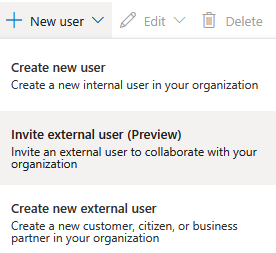
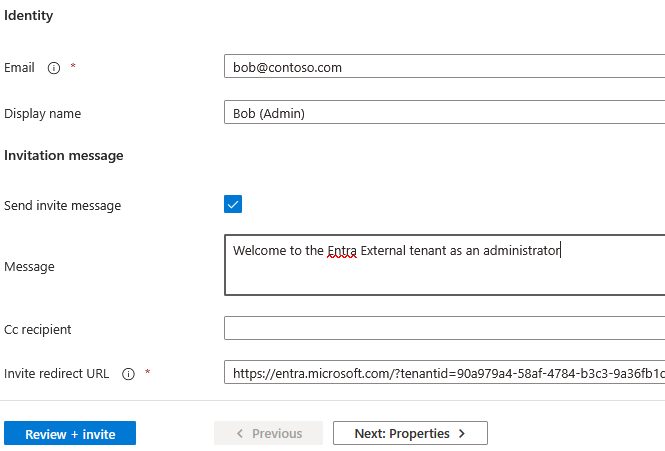
Adding additional administrators are in the Entra portal via Users > +Create > Invite external user where you add the email, like bob@contoso.com. Change the user type from Guest to Member.
Break-glass administrator accounts
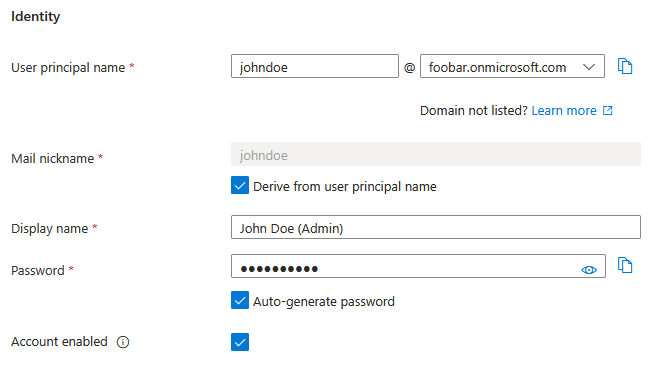
Consider adding a local account in the external tenant as a break-glass account. This account is created via Users > +Create > Create new user. This user will have a UPN like johndoe@foobar.onmicrosoft.com with a password and authentication methods governed by the external tenant. Assign this break-glass user to the Global Administrator role.
If you are using tools such as Microsoft Graph Explorer, local admin accounts will be your savior as you can’t use your workforce account and switch directory in Graph Explorer. You need a local account with the required permissions.
Admin group
Consider changing the DisplayName for all administrators to include “(Admin)”, like John Doe (Admin) and place all administrators in a group named Admin-group (or similar).
Conditional Access Policies for Administrators
Consider creating a CA policy with “Require multifactor authentication” that targets all administrators (admin group).
If external federated identity provider passes an MFA claim in its token showing the user already completed MFA at workforce tenant, the external trust that claim and allow them through without a second prompt. If the MFA claim is missing, then the CA policy in the external tenant will step-up and issue an MFA prompt.
In the first case, the MFA registration is stored in the workforce tenant. In the second, the MFA registration is stored in the external tenant.
Branding
Branding is done in the same way as an Entra Workforce tenant. User Flows can customize text in sign-up and sign-in pages but not override branding.
Sign-in and Audit logs and Azure Lighthouse
The Entra External tenant is standalone and has no Azure subscriptions that uses it as its IDP (nor should it have any as you want your enterprise IT secured by your workforce tenant). To do log shipping, you need to do the following:
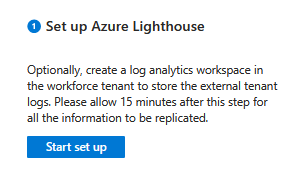
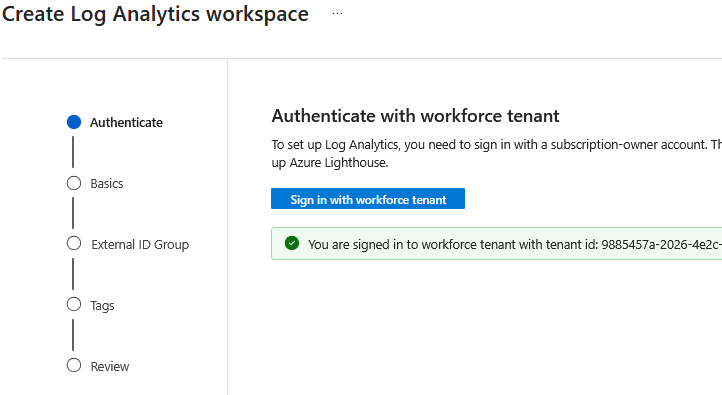
- In your workforce tenant, create a log analytics workspace to store the external tenant logs.
- In your external tenant, go to Monitor & health > Diagnostic settings and setup Azure Lighthouse to start shipping the logs to the log analytics workspace
Identity Providers
There are generally four types of accounts used in an Entra External tenant.
- Admin accounts for managing the tenant
- Local accounts
- Federated accounts with identity providers like Google, etc
- Federated accounts with your workforce tenant
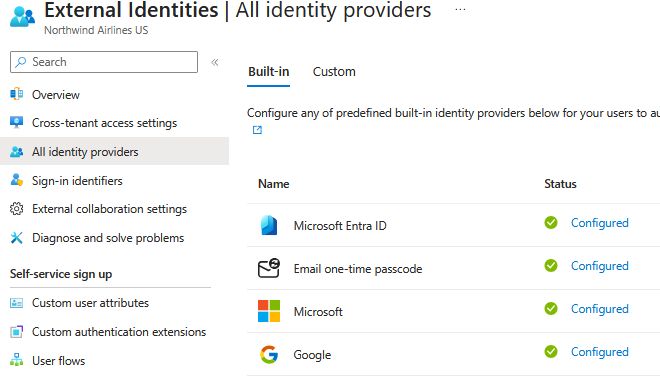
When signing in via a User Flow, type 2-3-4 are applicable. Admin accounts are only to login to entra.microsoft.com and manage the tenant.
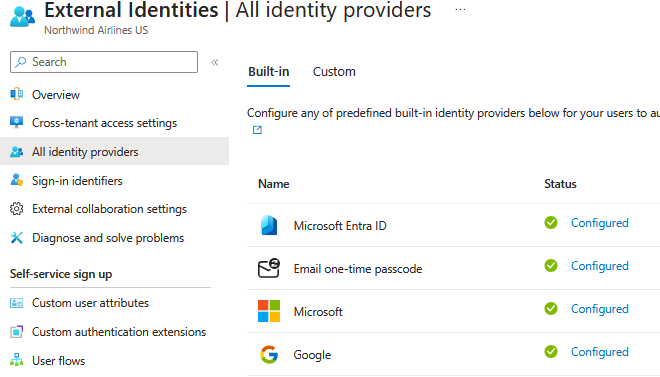
To support type 3 & 4, you need to configure identity providers. This you do once for the tenant, ie if you want Google federation to support users logging in with gmail accounts, you configure that federation once (see doc).
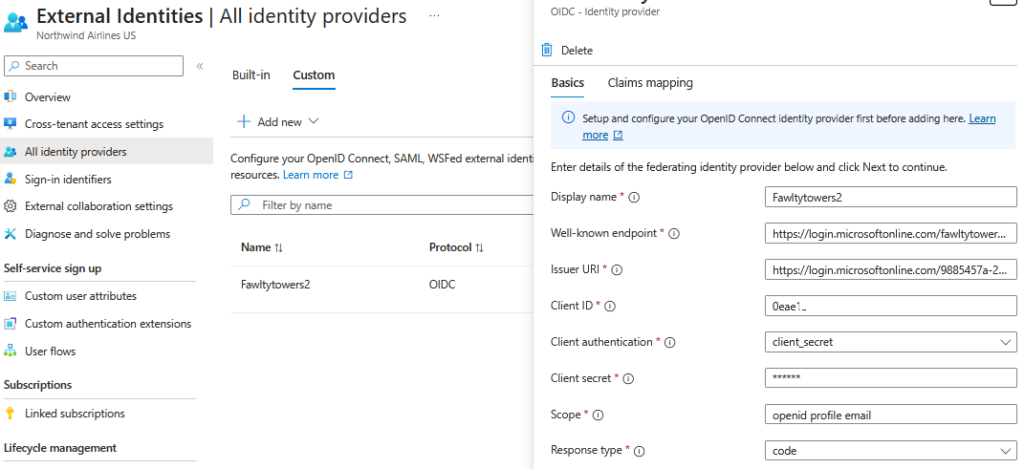
Federating with your workforce tenant means that your employees can login with their workforce accounts in the customer facing apps (see my previous post).
User Flows
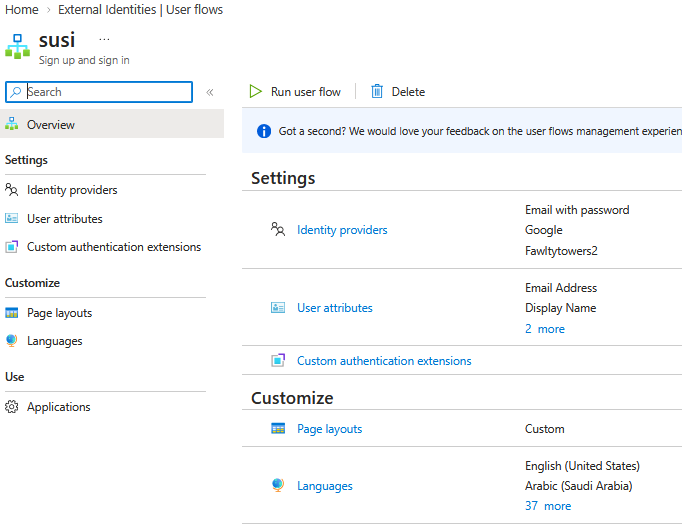
Consider creating an initial User Flow. User Flows handle sign up and sign in to customer facing applications. There can be multiple User Flows in an external tenant, but each defines which configured identity providers are available and how self-service sign up should work. An application is then bound to one User Flow.
Creating the initial User Flow gives you the opportunity to test drive sign up and sign in the Entra portal before giving the “tenant ready” signal to the developers.
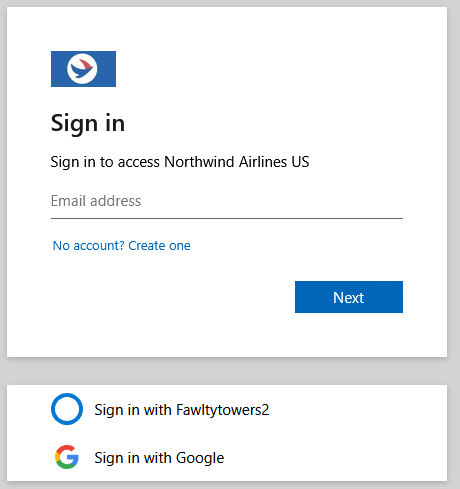
If you have configured an application and assigned the User Flow to that application, you can test-run the User Flow and see that it works as expected. Notice the “Sign in with Fawltytowers2” option. Your employees can use that option to login to the customer phasing application with their corporate credential. You can then make functionality available only to your corporate users.