Much water has passed under the bridge since I last had to work with SAML federation. It was with Azure AD B2C and with the sample test app azure-ad-b2c/saml-sp. Now, I needed this app to test SAML SP initiated SSO with Entra ID, so I set about to modify the app which resulted in this new repo https://github.com/cljung/samltestapp.
The key differences are:
- All B2C related functions are removed
- Simplified configuration by just specifying the SAML metadata URL from Entra
- SAML Requests & Responses for sign-in and logout are made viewable to help understanding what is going on.
You have a deployed instance available here that you canplay with https://samltestapp.azurewebsites.net/.
SP initiated SSO
To test-drive SAML SP initiated SSO for your SAML enabled Entra application, select Service Provider in the top menu. Then paste in the App Federation Metadata URL. The Issuer is prefilled and shouldn’t have to be changed unless you have built your own version where you have changed your config file.
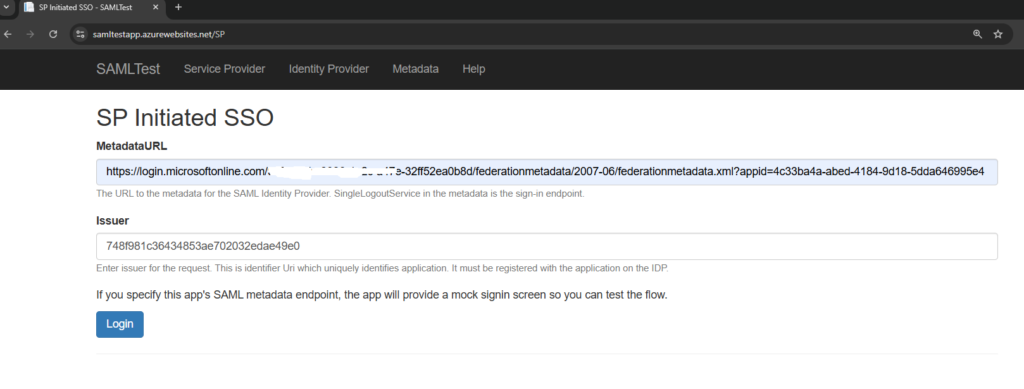
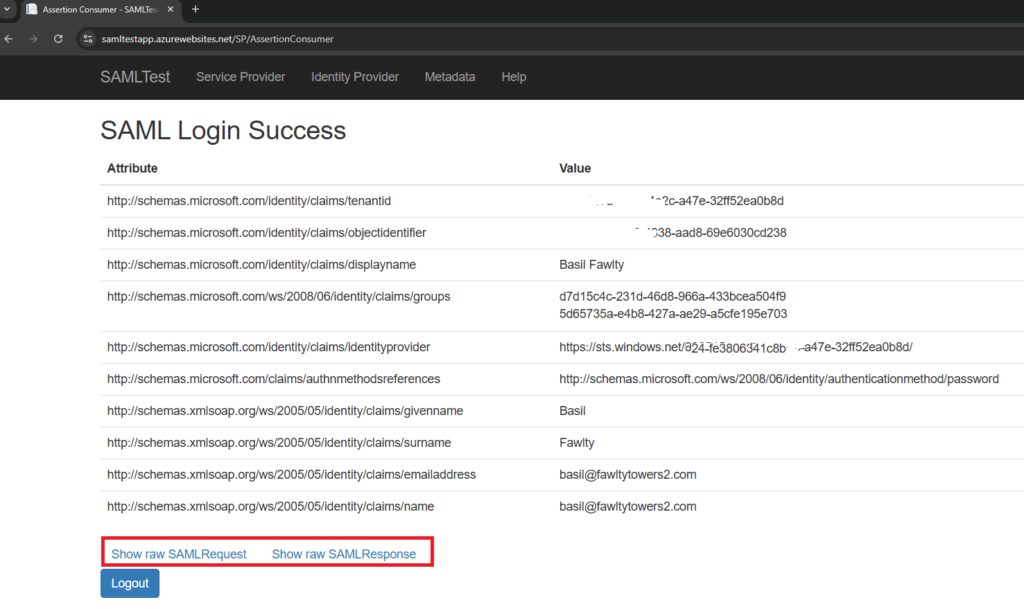
Pressing the Login button will take you through the normal Entra sign-in flow, with MFA or whatever your Entra tenant is configured with, then return to the test app to display the claims Entra returns in the SAML Response. You can inspect the SAML Request message the app sent to Entra and the SAML Response message Entra sent back via clicking on the links in highlighted red rectangle.
Configuring SAML Test App in your Entra tenant
Configuring the SAML Test App in your Entra tenant is very simple. You only have to follow these steps:
- Sign in to the Entra Admin portal
- Goto Entra ID > Enterprise apps > +New application > +Create your own application
- Enter a name, like SAMLTestApp and select Integrate any other application
- Select Single sign-on and then SAML
- Enter ‘748f981c36434853ae702032edae49e0’ for the Identifier (Entity ID)
- Enter ‘https://samltestapp.azurewebsites.net/SP/AssertionConsumer’ for the Reply URL (Assertion Consumer Service URL)
- Enter ‘https://samltestapp.azurewebsites.net/Logout’ for the Logout URL (Optional)
- Click Save
To test:
- Scroll down and copy the App Federation Metadata Url link
- Open https://samltestapp.azurewebsites.net/SP/ in the browser
- Paste in the metadata URL
- Click Login
As you can see in the above screenshot, I modified what claims Entra sends back for the user to add group memberships. This is done under Attributes & Claims and +Add group claim. The test app will display any claims Entra sends in the response.
IDP Initiated SSO
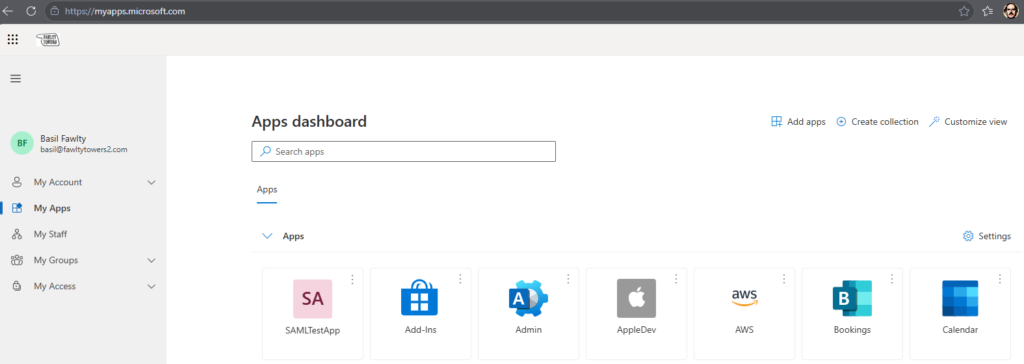
Testing IDP Initiated SSO is very easy. You just add your test account to your Enterprise app in the users and groups section in the Entra Admin portal. That will make it appear in https://myapps.microsoft.com for the test user. Clicking on the SAMLTestApp tile in MyApps will trigger an IDP Initiated SSO sign-in and you will land in the SAML Login Success page in the test app with claims for the test user. There will only be a Show SAML Response link as there was never a SAML sign-in request sent to Entra. This also highlights the difference between SP and IDP Initiated SSO.
Summary
SAML Test App is a simple tool to test-drive your Entra SAML SP initiated SSO. If your real app isn’t behaving as expected, you can replicate the configuration, with attributes, claims, etc, to the SAML Test App and see what is being returned from Entra. When you are happy with the configuration, you can then apply it back to your real app.